Safe online habits
Prevent data breaches
10 Quick Wins to Protect Your Personal Data (Without Losing Your Mind)
Protect your personal data with this 10-step checklist. Learn how to use aliases, manage passwords, and prevent data leaks with simple quick wins.
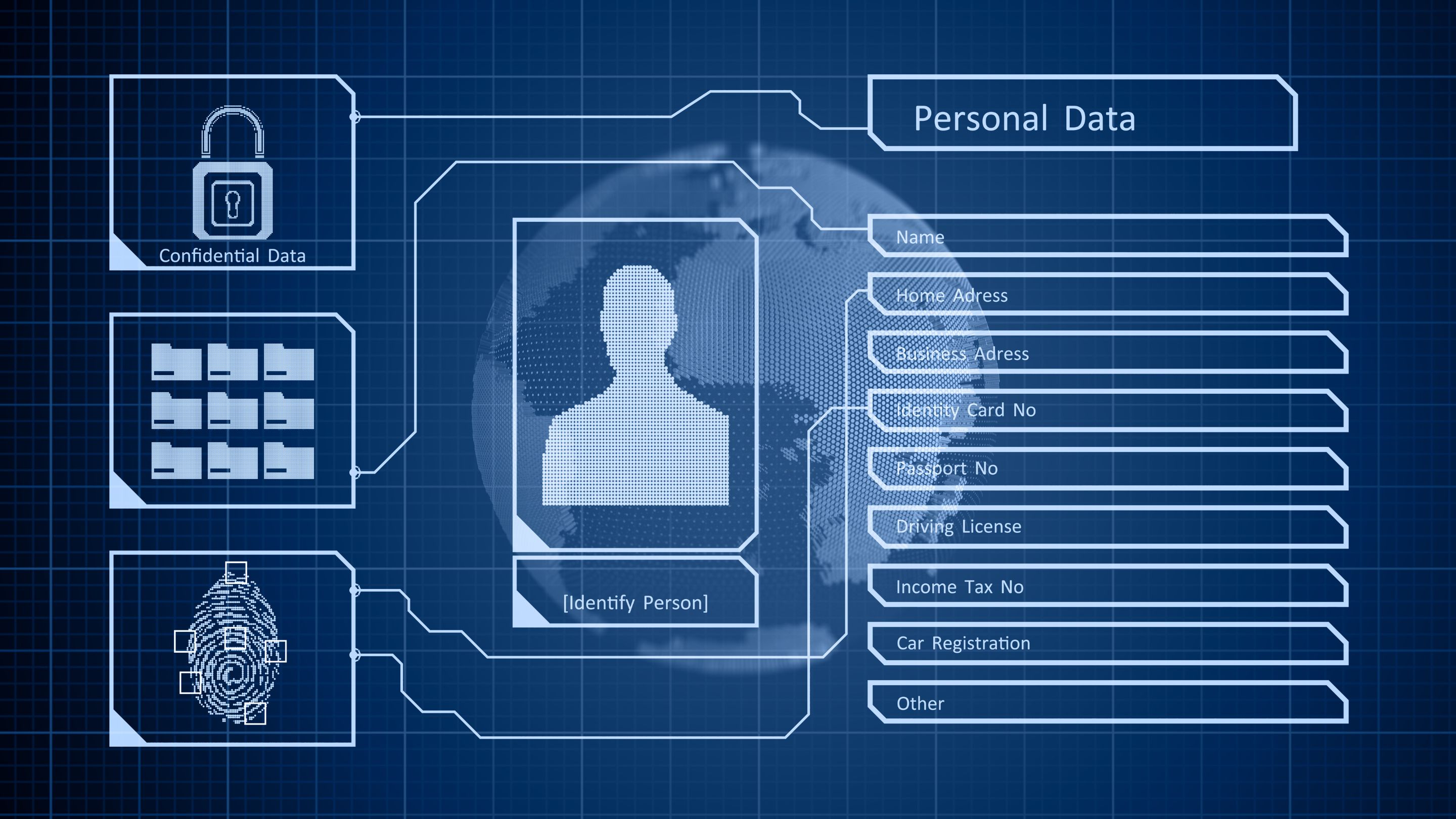
Your personal information is leaking everywhere. Data breaches hit the news weekly, and companies track your every move online. The good news? You don't need a computer science degree to protect yourself.
These 10 strategies take minimal effort but deliver maximum privacy protection. Think of them as digital hygiene—small habits that prevent big problems.
1. Stop Using Your Real Email Address Everywhere
The Problem: You use one email for everything. When any website gets hacked, your entire digital identity is exposed.
The Solution: Email aliases.
Services like SimpleLogin, Addy.io, or Apple's Hide My Email generate unique, random email addresses for every account you create. For example: random.store.x9z2@simplelogin.com.
How it works:
Each alias forwards to your real inbox
If one gets compromised or spammed, delete it
Your real email stays hidden
Real-world benefit: When that random online store gets breached, hackers get a useless alias—not your actual email.
2. Protect Your Phone Number Like It's Your Social Security Number
Because it basically is.
Your phone number is tied to your bank accounts, social media, and even government services. Unlike passwords, you cannot easily change it.
The Fix: Use a "burner" VoIP number for everything except critical accounts (banking, healthcare, government).
Best Options:
Service | Best For | Privacy Level |
|---|---|---|
MySudo | High-security accounts | ⭐⭐⭐⭐⭐ No real phone needed to sign up |
Hushed | Online marketplaces, dating apps | ⭐⭐⭐⭐ Accepts crypto payment |
Google Voice | Spam filtering for loyalty programs | ⭐⭐ Google collects your data |
Burner | Separating work from personal | ⭐⭐ Requires your real number to register |
Why this matters: If your "burner" number appears in a data leak, you can delete it and get a new one in 30 seconds.
3. Delete Risky Browser Extensions Right Now
Browser extensions can see everything you do online—passwords, bank balances, private messages.
Remove These Immediately:
Shopping assistants like Honey
Track your entire browsing history
Sell your shopping behavior to advertisers
Have deep access to every page you visit
Free VPN extensions
Running VPN servers costs money
If it's free, they're selling your browsing data
Many inject ads or malware
Keep These Instead:
✅ uBlock Origin (blocks ads AND malicious code)
✅ Bitwarden (open-source password manager)
That's it. Seriously. Most extensions do more harm than good.
4. Ditch SMS Two-Factor Authentication
SMS codes can be hijacked through "SIM swapping"—where a hacker convinces your phone carrier to transfer your number to their device.
Upgrade to:
For most people:
2FAS (Android/iOS, free)
Raivo OTP (iOS)
Aegis (Android)
For maximum security:
YubiKey (physical security key, $50-70)
Action step: Go to your email and banking accounts today and switch from SMS to app-based authentication.
5. Lie to Websites (Strategically)
Data brokers build profiles by stitching together accurate information from hundreds of sources.
The counter-strategy: Give them junk data.
Safe places to lie:
Retail loyalty programs
Newsletter signups
Online forums
Delivery apps
Random birthday? Fake middle name? Made-up phone number? Go for it.
Important: Never lie on banking, medical, legal, or government forms. But that random e-commerce site asking for your birthday to "send you a discount"? They don't need your real information.
6. Use a Password Manager (And Stop Reusing Passwords)
If you use the same password across multiple sites, one breach compromises all your accounts. This is called "credential stuffing," and it's the #1 cause of account takeovers.
Best options:
Bitwarden (open source, free/paid)
1Password (best user experience)
Proton Pass (from the company behind ProtonMail)
The key feature: Use the random password generator. Every password should look like this: K9$mPq2#vL8@nR4%wE7
Pro tip: Don't rely on your browser's built-in password manager. Malware specifically targets Chrome's password storage.
7. Google Yourself (And Clean Up What You Find)
Open an incognito window. Search for:
Your full name + city
Your phone number
Your email address
Look for "people search" sites like Whitepages, Spokeo, or BeenVerified in the results.
What to do:
Most have an "Opt-Out" link in the footer
Manually remove yourself from the top 5 results
This takes 30-60 minutes but dramatically reduces your exposure
8. Switch Browsers (And Block Ads for Security)
Google Chrome is built by an advertising company. Its default settings are designed to collect your data, not protect it.
Better Options:
Firefox
Enable "Strict" Enhanced Tracking Protection
Change search engine to DuckDuckGo or Startpage
Brave
Privacy-focused by default
Built-in ad/tracker blocking
LibreWolf
Firefox-based with enhanced privacy settings pre-configured
No telemetry collection, uBlock Origin installed by default
The Security Bonus: Protection from Malvertising
You don't even need to click on an ad to get infected. Modern attacks exploit browser vulnerabilities just by rendering the ad on your screen—called a "drive-by download".
uBlock Origin isn't just an ad blocker—it's security software. It stops your browser from even connecting to malicious domains, preventing attacks before they start.
9. Kick Out Old Devices from Your Accounts
That old iPad you sold on Craigslist three years ago? It's probably still logged into your Gmail.
How to check:
Google: myaccount.google.com/device-activity
Apple: Settings → [Your Name] → Scroll down to see devices
Facebook: Settings → Security → Where You're Logged In
What to do: Click "Sign Out" or "Remove" on any device you don't currently own or use.
10. Change Your DNS to Stop Your ISP from Tracking You
Your internet provider sees every website you visit, even if the site uses HTTPS encryption.
The fix: Change your DNS (Domain Name System) server.
Recommended Services:
Quad9: 9.9.9.9
Blocks known malicious sites
Run by a Swiss non-profit
No logging of your queries
NextDNS: nextdns.io
Customizable ad/tracker blocking
Blocks malware at the network level
Free for up to 300,000 queries/month
Where to change it:
Router level: Protects all devices on your home network
Device level: Protects just your phone or laptop
Search "how to change DNS on [your device]" for step-by-step instructions.
Start Small, Build Momentum
You don't need to implement all 10 today. Pick three that seem easiest and start there:
Easiest wins:
Install uBlock Origin (2 minutes)
Run a "device audit" on your Google/Apple accounts (5 minutes)
Switch your browser search engine to DuckDuckGo (30 seconds)
Medium effort:
Set up a password manager (30 minutes)
Create your first email alias (10 minutes)
Weekend project:
Google yourself and opt out of data broker sites (60 minutes)
Get a VoIP number for future signups (15 minutes)
Privacy isn't about perfection. It's about making yourself a harder target than the next person. These 10 steps do exactly that.
Passwords & accounts
Both
How-to guide
Control my online visibility

LinkedIn Privacy Settings: Stop Spam and Data Theft
Passwords & accounts
Control my online visibility
Personal data & privacy
Personal privacy
Checklist
Secure my data & devices

The FBI has privacy advice for you, and it's actually pretty simple
Personal data & privacy
Secure my data & devices
Personal data & privacy
Personal privacy
Article
Secure my data & devices

Privacy and Personal Choice: Real-World Threats to Your Personal Data
Personal data & privacy
Secure my data & devices
Passwords & accounts
Personal privacy
Quick wins
Avoid getting hacked
Stop Memorizing Passwords: The 5-Minute Security Upgrade That Actually Works
Passwords & accounts
Avoid getting hacked