Passwords & accounts
Control my online visibility
LinkedIn Privacy Settings: Stop Spam and Data Theft
Update your LinkedIn privacy settings to block cold callers and stop data scraping. This guide shows exactly what to disable to protect your personal info.

Your name, job title, employer, email address, phone number, and work history are all on LinkedIn. For most people, that's the point. But that same information is what cold callers use to pitch you, what spammers harvest to fill your inbox, and what fraudsters use to impersonate you or people you trust.
You don't have to delete your account or disappear from the platform. You just need to be deliberate about what you share, with whom, and how. This guide walks you through every setting that matters, in plain language, in the right order.
What Bad Actors Actually Do With Your Data
Before you change anything, it helps to understand what you're protecting against.
LinkedIn is a goldmine for data brokers, sales automation tools, and scammers because the platform makes information public by default. Fake profiles connect with real people, then download their email addresses using LinkedIn's data export feature. Phone numbers synced to LinkedIn get matched to identities by data enrichment tools, which then sell those matches to cold-calling companies. Your connection list reveals your organizational network, which is useful for social engineering attacks. A fraudster who knows your boss's name, company, and team structure is far more convincing.
None of this requires hacking. It just requires your defaults being left as-is.
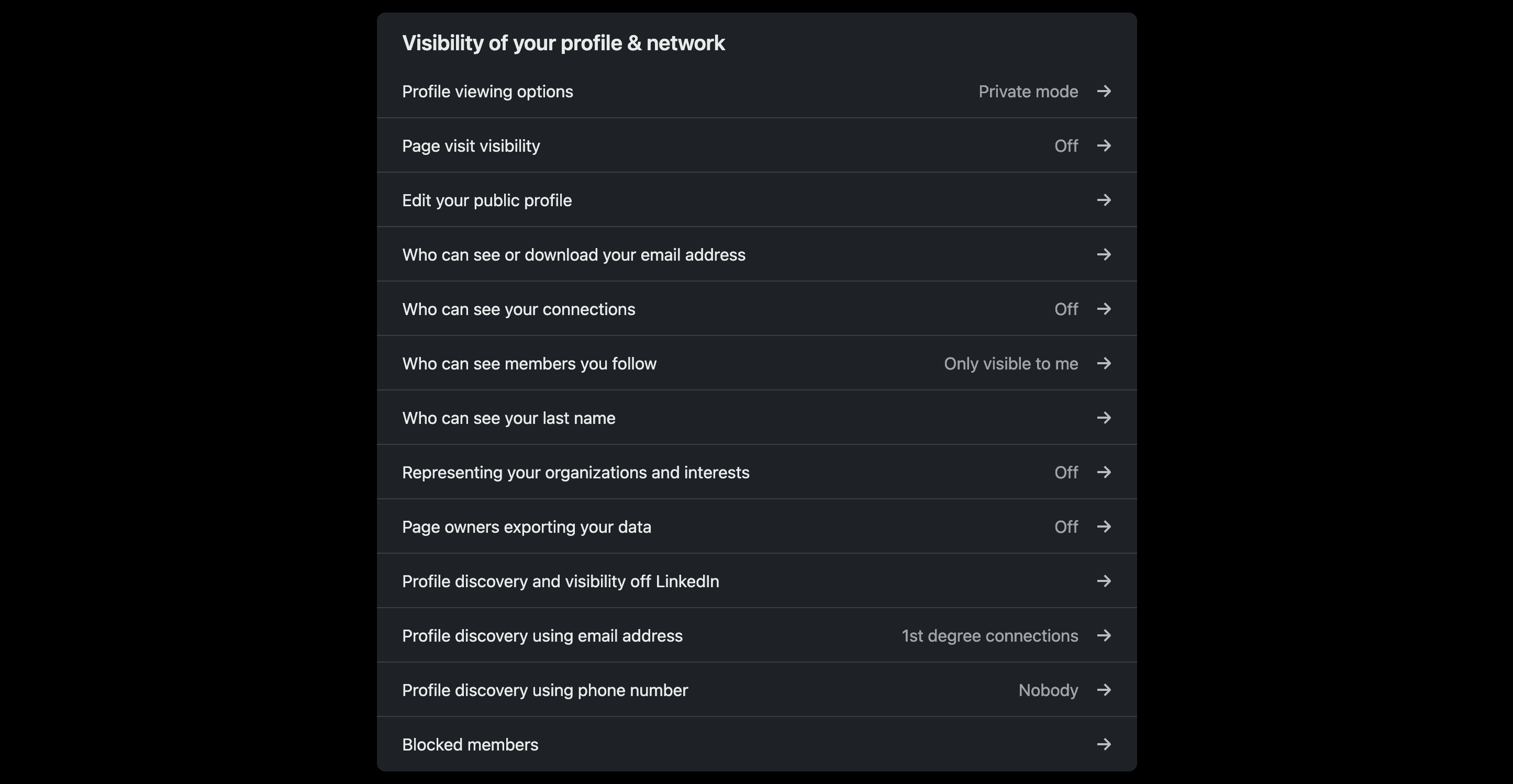
Step 1: Lock Down Your Visibility
These are the highest-impact changes. Start here.
Go to: Settings & Privacy → Visibility
Your email address
LinkedIn shows your primary email to all your direct connections by default. Worse, any connection can download it in bulk using LinkedIn's data export feature.
Set "Who can see your email address" to Only visible to me
Set "Allow your connections to download your email in their data export" to No
That second toggle is one most people miss entirely. Without it, one fake profile in your connections is enough to get your email into a spam database.
Your phone number and email discoverability
LinkedIn lets people find your profile by entering your phone number or email address, even if they don't know you.
Set "Profile discovery using your phone number" to Nobody
Set "Profile discovery using your email address" to 1st-degree connections
Your connection list
Your list of connections maps your professional network. Attackers use it to identify your colleagues, boss, and business partners, all useful for impersonation.
Set "Who can see your connections" to Off
Your public profile
Your public profile is what shows up on Google when someone searches your name. It's visible to people not even logged in to LinkedIn.
Go to "Edit your public profile" and turn off "Your profile's public visibility", or selectively hide sections like past experience, education, and skills
Separately, turn off "Profile discovery and visibility off LinkedIn" to reduce search engine indexing
Who can see you're online
Seeing your active status lets bad actors time outreach for when you're likely to respond.
Set "Manage active status" to No one
Followers and profile updates
Set "Followers" to Your connections so strangers can't follow your activity feed
Turn off "Share job changes, education changes, and work anniversaries from profile" so LinkedIn doesn't broadcast when you change your job title or add a skill
Turn off "Notify connections when you're in the news"
Turn off "Mentions or tags" (listed as "Mentioned by others") to prevent others from tagging you in posts without your knowledge
Step 2: Cut Off Data Sharing
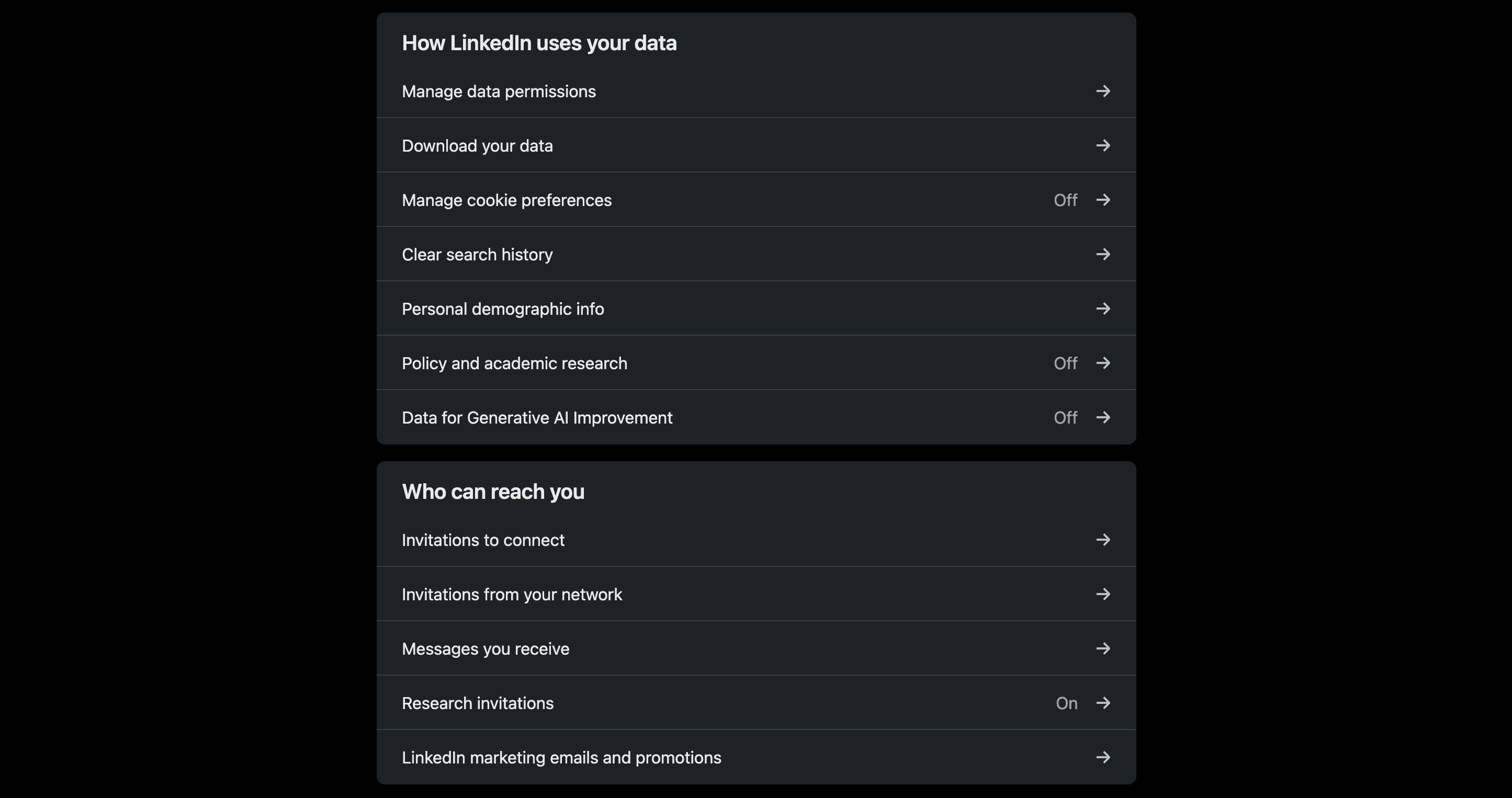
Go to: Settings & Privacy → Data Privacy
LinkedIn uses your data in ways that go well beyond what most people expect. Turn off everything listed below.
Generative AI training
In November 2025, LinkedIn updated its terms to use member data — your profile, posts, and activity — to train its AI models. This was switched on by default.
Under "Data for Generative AI Improvement", toggle it Off
This applies to all members globally. If you're in the EU or EEA, this was included starting November 3, 2025.
Research programs
LinkedIn can share anonymized profile data with external academic and economic researchers.
Turn off "Social, economic, and workplace research"
Synced contacts and calendar
If you've ever allowed LinkedIn to access your contacts or calendar, it's been building a map of your relationships and using it for ad targeting.
Turn off "Sync contacts" and click "Remove all" to delete synced data
Turn off "Sync calendar" and click "Remove all"
Job applications and search history
Turn off "Save and manage your resumes and answers" to stop LinkedIn from storing your job application responses
Go to "Search history" and click "Clear search history"
Step 3: Kill Ad Personalization
Go to: Settings & Privacy → Advertising Data
LinkedIn tracks an enormous amount of data to serve targeted ads. Every single toggle here defaults to On. Turn all of them Off.
The full list includes: profile data, interest categories, connections data, location, demographics, companies you follow, groups, education, job information, employer, audience insights, ads outside of LinkedIn, interactions with businesses, and ad-related actions.
You will still see ads after turning these off. They just won't be based on your personal data.
Data sharing with affiliates and partners
LinkedIn shares your data with Microsoft and advertising partners for targeted ads across properties beyond LinkedIn itself.
Go to: Advertising data → Share data with affiliates and partners
Turn off "Data sharing with affiliates and select partners"
Step 4: Control Who Can Reach You
Go to: Settings & Privacy → Data privacy
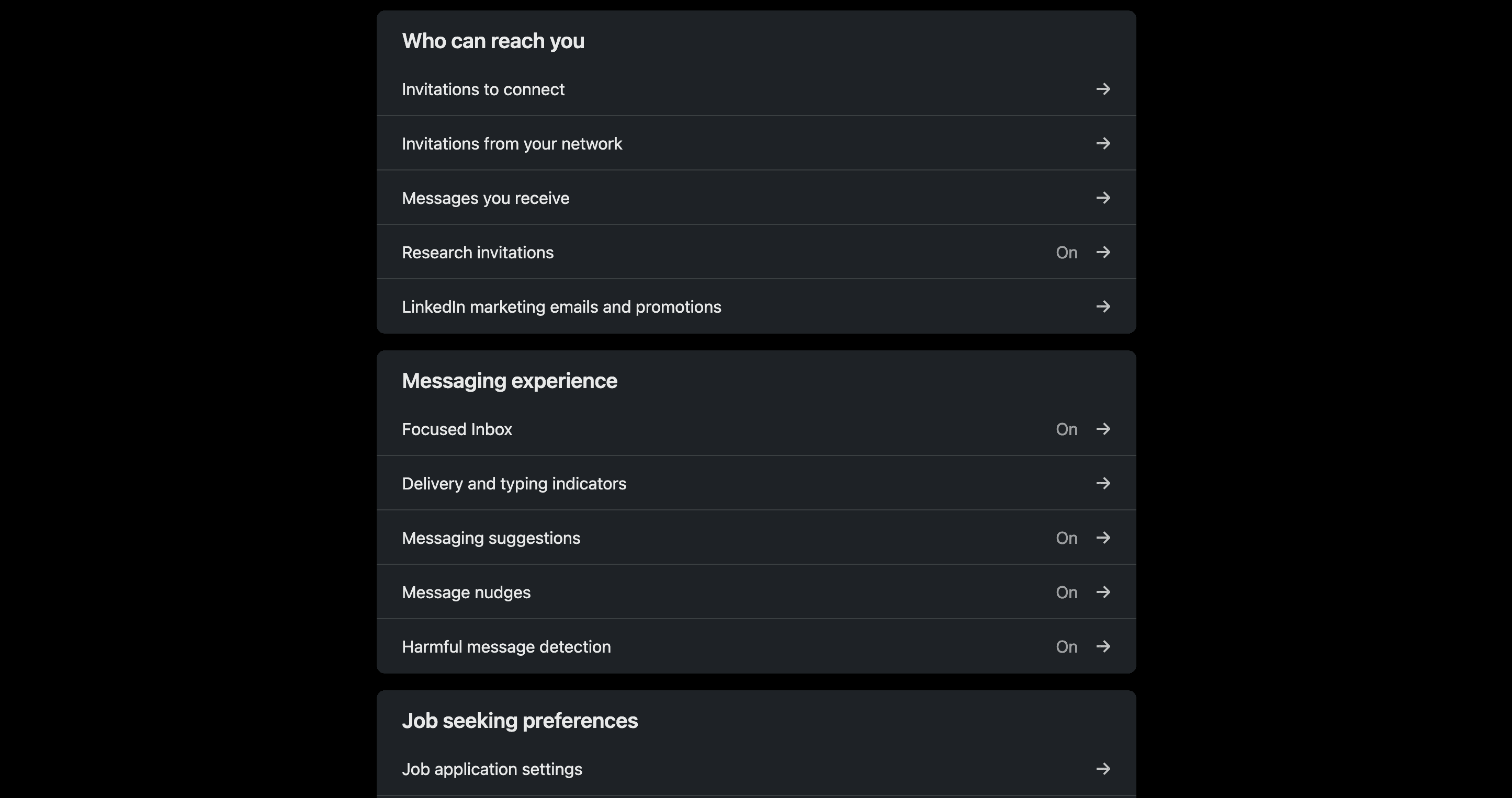
Invitations to connect
By default, anyone on LinkedIn can send you a connection request. That's how fake profiles start building access to your network.
LinkedIn gives you three options:
Everyone on LinkedIn (default)
Only people who know your email address or appear in your Imported Contacts list
Only people who appear in your Imported Contacts list
For the strongest protection, choose option 3. This effectively stops all unsolicited connection requests from bots and cold outreach tools. For a more balanced approach, option 2 is a solid middle ground.
Messages you receive
LinkedIn Premium users can message anyone, even people they're not connected to. You can turn this off.
Set "Allow others to send you InMail" to No
Invitations from your network
Turn off "Page invitations", "Event invitations", and "Newsletter invitations"
These are frequently used by scrapers and marketers to push promotional content at you.
Step 5: Secure Your Account
Go to: Settings & Privacy → Sign-in & Security
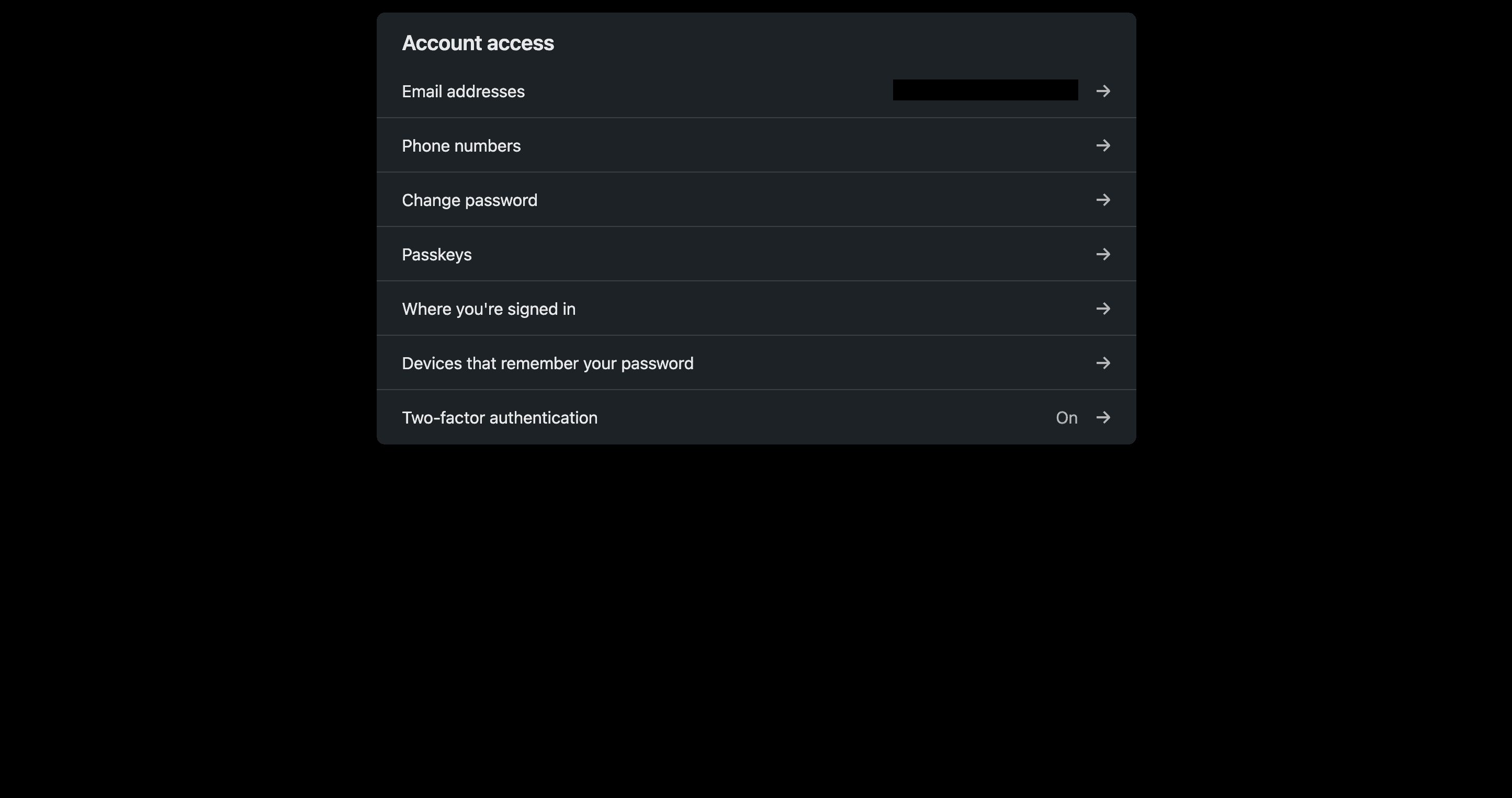
Turn on two-factor authentication
This is the single most important security step. If your password is ever compromised, two-factor authentication is what stops someone from logging in.
Under "Two-step verification", click Turn on
Choose Authenticator App (Google Authenticator, Authy, or Microsoft Authenticator) rather than SMS
Why not SMS? Because SMS codes can be intercepted through a SIM-swap attack, where someone convinces your mobile carrier to transfer your number to their device.
Review your active sessions
LinkedIn keeps a log of every device currently signed into your account. Check it regularly.
Under "Where you're signed in", review all active sessions
End any session you don't recognize
If anything looks suspicious, use "Remove all devices" and change your password immediately. This signs out all active sessions automatically.
Your password
Use a password that is long, unique, and not used on any other account. A password manager (like Bitwarden or 1Password) makes this effortless.
The Trade-offs You Should Know About
Being honest: locking everything down comes with real costs.
Turning off public profile visibility means you won't show up in Google search results. Restricting invitations to your Imported Contacts list means legitimate contacts who don't already know your email can't reach you. Private mode means you lose visibility into who viewed your profile.
The practical approach is to start with maximum restrictions and loosen specific settings only when you have a concrete reason. If you're actively job-hunting, temporarily re-enable public profile visibility and open up invitations. When the search is over, lock it back down.
One more thing: LinkedIn regularly introduces new data-sharing features that default to On. Make it a habit to check your Settings & Privacy page every few months. What's locked down today may have a new toggle added tomorrow.
Passwords & accounts
Both
How-to guide
Control my online visibility
LinkedIn Privacy Settings: Stop Spam and Data Theft
Passwords & accounts
Control my online visibility
Personal data & privacy
Personal privacy
Checklist
Secure my data & devices

The FBI has privacy advice for you, and it's actually pretty simple
Personal data & privacy
Secure my data & devices
Personal data & privacy
Personal privacy
Article
Secure my data & devices

Privacy and Personal Choice: Real-World Threats to Your Personal Data
Personal data & privacy
Secure my data & devices
Passwords & accounts
Personal privacy
Quick wins
Avoid getting hacked
Stop Memorizing Passwords: The 5-Minute Security Upgrade That Actually Works
Passwords & accounts
Avoid getting hacked