Personal data & privacy

Stop doxxing

Ultimate Instagram Security Guide: Protect Your Data 2026

Learn how to protect your personal data with our ultimate Instagram security guide. Discover expert tips to stop OSINT threats and lock down your profile.

Your Instagram account contains more personal data than most people realize, and the tools to extract it are free, well-documented, and require no special skills.

In January 2026, a dataset containing 17.5 million Instagram records, including 6.2 million email addresses and partial phone numbers, appeared on BreachForums. That same month, a coordinated wave of fake password reset emails targeted Instagram users worldwide. In August 2025, a new "Friend Map" feature quietly introduced real-time location sharing. On May 8, 2026, Meta will permanently remove end-to-end encryption from Instagram direct messages.

A determined attacker using publicly available tools can build a detailed profile of any Instagram user in under an hour, pulling their approximate phone number, email address, employer, home neighborhood, and daily routine from a combination of posts, follower lists, and cross-platform data. This holds even if the account is set to private.

This guide covers the full range of current Instagram hardening measures, organized into a priority and difficulty matrix so you can take the highest-impact steps first, regardless of your technical background. The tips are drawn from current security research, confirmed 2025–2026 threat data, and Instagram's own settings documentation.

Why "Set to Private" Is Not Enough

Before getting into the checklist, one misconception needs addressing.

Setting your account to private is necessary, but it is not a complete solution. Even on a fully private account, anyone on the internet — no login, no follow request required — can see your profile picture (in full resolution), your display name, your bio, your follower and following counts, your post count, and whether your account is connected to Facebook. Your numeric User ID is also permanently public and never changes, even if you change your username.

Setting your account to private is not the same as making it invisible. Instagram's default settings are built for discoverability and engagement. Hardening your account means going through those defaults and switching them off. The settings in Tier 1 take about 60 minutes combined.

How to Use This Guide

Tips are organized into four tiers:

  • Tier 1 — Do today. High-impact settings, mostly a tap or toggle in the app.

  • Tier 2 — Do this week. Slightly more involved: installing apps, signing up for services, or cleaning up old content.

  • Tier 3 — Ongoing habits. Behaviors and quarterly routines that protect you long-term.

  • Tier 4 — Advanced. For users at elevated risk who want maximum protection. Requires purchasing hardware or comfort with technical tools.

Difficulty is marked as 🟢 Easy, 🟡 Medium, or 🔴 Hard.

Tier 1: Do Today

Approximately 60 minutes. Mostly single-tap settings inside the Instagram app or Accounts Centre.

1. Set your account to private 🟢
Profile → ☰ → Settings and privacy → Privacy → Account Privacy → toggle Private account ON.

After switching, go through your existing followers and remove any accounts you don't recognize.

2. Remove your real name from your display name 🟢
Profile → Edit Profile → Name → clear or replace with a non-identifying name.

Your display name is publicly visible even on a private account.

3. Strip your bio of sensitive information 🟢
Profile → Edit Profile → Bio → remove any mention of employer, school, city, email address, or phone number.

Anything in your bio is visible to every person on the internet, whether they follow you or not.

4. Disable activity status 🟢
Settings → Messages and story replies → Show activity status → OFF.

When this is on, anyone who has messaged you or follows you can see a green dot showing you're currently online, or a timestamp of when you were last active. Turning it off prevents others from tracking your usage patterns.

5. Restrict who can tag you in posts, and enable manual tag approval 🟢
Settings → Privacy → Tags → "People you follow" or "No one." Enable "Manually Approve Tags."

Without this, other people's photos of you can appear on your profile, revealing your location, your face, events you attended, and people you associate with — none of which you posted yourself.

6. Restrict who can mention you in posts and stories 🟢
Settings → Privacy → Mentions → "People you follow" or "No one."

7. Restrict DM requests to people you follow only 🟢
Settings → Privacy → Messages → Message requests → "Only people you follow."

One of the most common ways attackers try to find a user's location is by sending a disguised tracking link via DM. If you never receive DMs from strangers, that attack route is cut off entirely.

8. Disable contact syncing in the app 🟢
Settings → See more in Accounts Centre → Your information and permissions → Upload contacts → toggle OFF.

Then deny Instagram contact access at the phone level: iOS → Privacy & Security → Location Services → Instagram → Never. Android → Settings → Apps → Instagram → Permissions → Contacts → Deny.

Instagram holds the name and number of every person in your contacts if syncing is enabled. Separately, anyone who has your phone number saved and syncs their contacts can be shown your Instagram profile as a suggested account, even if you've never interacted online.

9. Delete previously uploaded contacts 🟢
Settings → See more in Accounts Centre → Your information and permissions → Upload contacts → Delete all.

Turning off contact syncing stops new data from being sent, but it does not delete what Instagram already collected. This step removes what's already on file.

10. Unlink Facebook and Threads 🟢
Settings → See more in Accounts Centre → Accounts → remove linked Facebook, Threads, and any other connected accounts. Disable automatic cross-posting.

When Instagram and Facebook are linked, Meta combines data across both platforms to build a more complete profile. A security issue on one account can cascade to the other. Cross-posting activity also publicly signals the link between the two accounts.

11. Turn off "Similar Account Suggestions" 🟢
On instagram.com (desktop) → Edit Profile → uncheck "Similar Account Suggestions."

When this is on, Instagram recommends your account to visitors of your friends', family members', or colleagues' profiles. Complete strangers can be directed to your account just because of who you're connected to.

12. Revoke unused third-party app access 🟢
Settings → Privacy → Apps and Websites → review the list and remove all apps you don't actively use.

Every time you've used "Log in with Instagram" on another app or website, that app was granted access to read your Instagram data. Many of those apps still have active access years later. Each one is a potential leak point.

13. Disable profile picture expansion 🟢
Profile → ☰ → Settings and privacy → Account privacy → toggle off "Allow Profile Picture Expansion."

By default, anyone can tap your profile picture to expand it to full resolution and download a high-quality image of your face. This makes it straightforward for someone to run a facial recognition search against you using free tools.

Note: This toggle is missing for some Creator and Professional account types, and may not appear on older app versions. Update the app if you don't see it.

14. Enable login alerts 🟢
Accounts Centre → Password & Security → Security Checks → Login Alerts → enable both In-App Notifications and Email.

Instagram will notify you whenever your account is accessed from a device or location it doesn't recognize. This is often the first warning that someone else has your credentials.

15. Audit active sessions and remove unrecognized devices 🟢
Accounts Centre → Password & Security → Where You're Logged In.

This screen shows every device currently logged into your account, along with the location and time of last activity. If you see a device or city you don't recognize, tap it and select "Log out."

16. [TIME-SENSITIVE] Download your encrypted DM history before May 8, 2026 🟢
Profile → ☰ → Settings → Accounts Centre → Your information and permissions → Download your information.

Until May 8, 2026, some Instagram DM conversations are end-to-end encrypted, meaning only you and the other person can read them. After May 8, that encryption is permanently removed. All DMs will become accessible to Meta and potentially to law enforcement via legal requests. If you have sensitive conversations, screenshot or export them before the deadline.

For any ongoing private communication after that date, migrate to WhatsApp (which retains end-to-end encryption) or Signal.

17. Check your email and phone on HaveIBeenPwned 🟢
Go to haveibeenpwned.com and search every email address and phone number you've ever associated with your Instagram account. Sign up for free breach notifications.

HaveIBeenPwned is a free, trusted public service that indexes data from known security breaches. The January 2026 Instagram breach added 6.2 million email addresses to its database. If your email appears in a breach, change your Instagram password immediately and check whether that same password was used anywhere else.

18. Upgrade from SMS two-factor authentication to an authenticator app 🟡
Accounts Centre → Password and Security → Two-factor Authentication → Authentication App.

Recommended apps: Aegis (Android, free, open-source), 2FAS (any device, free), Ente Auth (any device, with encrypted backup).

SMS two-factor authentication is vulnerable to SIM-swap attacks. In a SIM swap, a criminal calls your mobile carrier, impersonates you using personal information found online, and convinces the carrier to transfer your phone number to a SIM card they control. Once they have your number, they receive all your text messages, including login codes, and can take over your account. An authenticator app generates codes on your device itself, so there is nothing to intercept.

19. Save your 2FA backup codes offline 🟡
After setting up authenticator-based 2FA, Instagram generates a set of one-time backup codes. Print them and store them with other important documents, or save them in encrypted offline storage.

If your phone is lost, broken, or reset, you lose access to your authenticator app codes. Without backup codes, recovering your Instagram account is extremely difficult.

20. Change any password that appeared in a breach 🟡
Check haveibeenpwned.com/Passwords to verify your current passwords don't appear in known breach databases. Change any that do, and make sure each platform you use has a unique password.

Tier 2: Do This Week

Slightly more involved steps: installing apps, signing up for services, or cleaning up existing content.

21. Remove your phone number from Instagram entirely 🟢
Settings → Edit Profile → Private Information → remove phone number. Rely on email-only for account recovery.

Your phone number is one of the most sensitive data points on your account. Even when hidden from your profile, it can be partially recovered through Instagram's own account recovery flow, and it was included in multiple major scraping incidents.

22. Remove location tags from all existing posts 🟢
Open each post → tap ⋯ → Edit → tap the location tag → remove. This needs to be done post by post.

A full history of geotagged posts is a map of everywhere you've been. Anyone with access to that data can identify your home neighborhood, workplace, gym, and daily routine.

23. Delete archived stories that contain location stickers, weather stickers, or identifiable backgrounds 🟢
Profile → ☰ → Archive → Stories Archive → review and delete relevant content.

Stories expire from your profile after 24 hours, but they stay in your archive indefinitely. Weather stickers are a non-obvious risk: they pull local weather data, which narrows down the city or region you were in when you posted.

24. Disable the Friend Map 🟢
DMs inbox → tap the map icon at the top → Settings → Who can see you on the map → "No one" → Done.

Also revoke location at the phone level: iOS → Settings → Privacy & Security → Location Services → Instagram → Never.

The Friend Map, launched in August 2025, uses GPS, WiFi, and Bluetooth signals to show followers your approximate real-time location every time you open Instagram. Even after opting out of live location sharing, geotagged posts and stories can still appear on the map. The US military issued an official security advisory warning personnel not to use this feature.

25. View your own profile as a stranger 🟢
Open a private/incognito browser window and go to instagram.com/YOUR_USERNAME without logging in. Check everything that's visible: profile picture, name, bio, follower counts, highlight titles, linked URL.

This is the most direct way to see exactly what a stranger sees when they look you up. Most people are surprised by how much is accessible without logging in, even on a private account.

26. Reverse image search your profile picture 🟢
Go to yandex.com/images, click the camera icon, and upload your profile photo. Also try images.google.com (Google Lens) and tineye.com.

You're checking whether your face has been matched to other websites you didn't put it on: news articles, event photos, other social profiles. Yandex consistently outperforms Google at matching faces across different photos and lighting conditions. If you find unexpected matches, contact those sites to request removal.

27. Check if your old public profile was archived 🟢
Go to web.archive.org and search instagram.com/YOUR_USERNAME.

The Wayback Machine is a free public internet archive that has been saving website snapshots since 1996. It may have captured your profile from years ago, including old bios listing your employer or city, from before you made your account private. If you find sensitive content, submit a removal request at help.archive.org.

28. Check aggregator site caches for your content 🟢
Search Google for: site:picuki.com "your_username" and site:imginn.com "your_username".

Third-party websites like Picuki and Imginn scraped and archived public Instagram content. Even after you delete a post or set your account to private, these sites may still show your old posts and stories. If you find cached content, look for a "Remove" or "Report" button on each page.

29. Check people-search sites for your phone number 🟢
Visit Spokeo, Whitepages, and TruePeopleSearch and search your phone number. Submit removal requests on any site where you appear.

People-search engines scrape public records and data broker databases to build profiles that link phone numbers to real names, home addresses, and social media accounts. Removal requests are legally required to be honored in many countries.

30. Check your username on other platforms 🟢
Go to namecheckr.com and search your Instagram username to see which other platforms have an account with the same handle.

If your Instagram username matches your accounts on LinkedIn, Reddit, GitHub, or TikTok, anyone can link those accounts together and pull information from each. Your LinkedIn gives your real name and employer. Your Reddit gives your opinions and location hints. Your GitHub gives your code and projects. A unique Instagram username breaks that chain.

31. Request your official Instagram data download and review it 🟡
Profile → ☰ → Settings → Accounts Centre → Your information and permissions → Download your information → select JSON format and "All time."

The download arrives within hours to 48 hours. Inside you'll find: your full name, email, phone number, date of birth, every IP address you've ever logged in from, every username you've ever used, your synced contacts (if contact sync was ever enabled), and all your DMs including messages you've deleted. Reviewing this file shows you exactly what exists on Meta's servers about you.

32. Set up a dedicated email alias for Instagram 🟡
Free options: SimpleLogin (10 aliases), addy.io (unlimited), Apple Hide My Email (requires iCloud+), Firefox Relay (5 aliases).

An email alias is a disposable address that automatically forwards emails to your real inbox. You give Instagram the alias instead of your real email. If that alias ever appears in a data breach, you delete it and create a new one. Your real email address stays clean and unconnected to your Instagram account.

The Gmail "+" trick (such as yourname+instagram@gmail.com) does not work as a privacy measure. Anyone can remove the +instagram part to instantly recover your real address.

33. If you use a Business or Creator account, use a dedicated alias email and virtual phone number 🟡
Profile → Edit Profile → toggle off "Display contact info," or replace personal contact details with an alias email and a VoIP number.

Business and Creator accounts cannot be set to private. Their contact button is fully public: every visitor sees your listed phone number and email. If you switched to a professional account primarily to access Instagram analytics, consider whether that trade-off is worth it.

34. Add a carrier-level SIM PIN and require in-person ID for SIM changes 🟡
Call your mobile carrier or visit their website and ask to add an account security PIN, plus require in-person verification for any SIM transfers or number ports.

Even after upgrading from SMS 2FA to an authenticator app, your phone number may still be stored in Instagram's system for account recovery. A SIM-swap attack can still be used to initiate a password reset. Carrier-level protections make this attack much harder to pull off.

35. Install and set up a VPN 🟡
Recommended options with independently audited no-logs policies: Mullvad (~€5/month), ProtonVPN (free tier available), IVPN (~$6/month).

A VPN routes your internet traffic through a server in another location, so your real IP address is not exposed when you browse. If someone sends you a tracking link in a DM and you click it, they see the VPN server's location instead of yours. Enable the VPN's kill switch (found in the VPN app settings) so that all traffic is blocked if the VPN connection drops unexpectedly.

Use a consistent server location near your actual region. Frequently switching server locations triggers Instagram's suspicious activity detection and can cause your account to be temporarily locked.

36. Install an EXIF-stripping app and use it before every photo upload 🟡
Android: Scrambled Exif (free) or ExifEraser (free, on F-Droid). iOS: Metapho (free for basic stripping).

Every photo taken on a smartphone automatically contains hidden data called EXIF metadata: the exact GPS coordinates where the photo was taken, the device model, and the date and time. Someone who downloads one of your photos can open it with a free tool and see the precise address where it was taken. The apps above remove all of this before you share, with a single tap.

Do not rely on Instagram to handle this for you. Instagram strips metadata from most feed posts, but not reliably from photos sent via DMs. Meta also retains your original files with full EXIF data on their servers, regardless of what is stripped from the public version.

37. Set up a passkey 🟡
Accounts Centre → Password and Security → Passkeys (availability varies by device and region).

A passkey completely replaces your password. Instead of typing a string of characters, you use your phone's Face ID, fingerprint, or PIN to log in. There is no password stored anywhere, so there is nothing for a hacker to steal from a data breach or trick you into entering on a fake website.

38. Change your Instagram username if you use the same handle on other platforms 🟡
Profile → Edit Profile → Username → change to something unique.

This one step cuts how easily an attacker can link your Instagram account to your other online identities.

39. Submit a Meta AI objection request 🟡
Settings → Privacy Centre → AI at Meta → Submit an objection request.

Meta uses public posts, photos, and captions from Instagram to train its AI models. This request is the only official opt-out mechanism for non-EU users.

Important caveat: This process has limited practical effectiveness. Multiple users report the form is frequently broken, requires a Facebook account to submit, and asks for proof that Meta AI has already used your specific content, making proactive objection nearly impossible. Setting your account to private is the more reliable mitigation, since Meta states it does not use private content for AI training.

Tier 3: Ongoing Habits

These are behaviors and quarterly routines. Most cost no extra time once they become habit.

Never click links from unknown senders in DMs. This single habit cuts the primary IP-harvesting attack vector. When you tap a link, your device connects directly to the server hosting that page and immediately reveals your IP address, device type, and approximate location, even if the link looks harmless.

Always strip EXIF metadata before posting any photo. Once the Scrambled Exif or Metapho app is installed, this takes about five seconds per photo via the share sheet.

Before posting any photo, check the background. Street signs, building numbers, landmarks, license plates, school or work logos, and reflections in windows or sunglasses can all reveal your location or identity to someone who knows where to look.

Avoid posting photos that establish a consistent location pattern. A single photo at a coffee shop is low risk. Twelve photos over six months at the same coffee shop, combined with other background details, can identify your home neighborhood and daily routine.

Verify suspicious Instagram security emails in-app before acting. Settings → Security → Emails from Instagram. This log shows every legitimate email Instagram sent you in the last 14 days. If a security email you received doesn't appear here, it's fake. Instagram will never ask for your password via email or DM.

Be aware of the no-link phishing email variant. In this scam, you receive a convincing email claiming someone attempted to log into your account. The email tells you to click "Report this user," which opens your email client with a pre-written message addressed to the scammer, who then poses as Instagram Support and asks for your credentials. There's no suspicious link for spam filters to catch. If you receive this type of email, close it and check your account directly in the app.

Use your VPN consistently. Once installed and configured, most VPN apps run silently in the background.

Use a password manager for all new account sign-ups. Recommended options: Bitwarden (free, open-source), 1Password. These apps generate and store unique, strong passwords for every service, so you only ever need to remember one master password.

Quarterly: reverse image search your profile picture on Yandex Images, Google Lens, and TinEye to check for unexpected matches.

Quarterly: audit your active sessions (Accounts Centre → Password & Security → Where You're Logged In) and remove any unrecognized devices.

Quarterly: review and revoke third-party app access (Settings → Privacy → Apps and Websites).

Quarterly: review your followers list for accounts you don't recognize and remove them.

Quarterly: review tagged photos by other people for images that reveal your location, associates, or daily patterns.

Quarterly: run the incognito profile check again to see whether any new information has become visible to strangers.

Tier 4: Advanced

For users at elevated personal risk: public figures, journalists, executives, or anyone being actively targeted. Requires purchasing hardware or comfort with technical tools.

Use a FIDO2 hardware security key (YubiKey 5 NFC) as your 2FA method 🔴
Purchase from Amazon or directly from Yubico. Cost: approximately $50–70. Register two keys and store one as a backup.

A hardware key is a small physical USB or NFC device that you plug into your computer or tap against your phone to confirm a login. Unlike SMS codes or authenticator app codes, the key is cryptographically tied to the specific website you're logging into. If an attacker creates a convincing fake Instagram login page and tricks you into entering your password and authenticator code, they can relay those credentials in real time to the real Instagram and get in before the code expires.

A hardware key defeats this attack entirely. It will only respond to the genuine Instagram website. Even with your password in hand, an attacker cannot log in without the physical key.

Disable WebRTC in your browser 🔴
Firefox: type about:config in the address bar → search media.peerconnection.enabled → set to false.
Chrome: install the browser extension "WebRTC Leak Prevent."

WebRTC is a technology built into every web browser that enables video and voice calls to work directly between two people. As a side effect, it can reveal your real IP address to any website you visit, even while using a VPN, because the browser is designed to find the most direct network route for calls. If you open a suspicious link in your browser, WebRTC can silently expose your real location to the hosting server.

Run a username audit using Sherlock 🔴
Install with: pipx install sherlock-project. Run with: sherlock YOUR_USERNAME --csv.

Sherlock checks your username across 400+ platforms and exports all matches. Every match is a data point an attacker can use to build a profile. If your handle appears on 15 or more platforms, an attacker can pull your employer (LinkedIn), opinions (Reddit), code (GitHub), and location hints elsewhere into a single picture of who you are.

Run an email exposure check using Holehe 🔴
Install with: pip3 install holehe. Run with: holehe your_email@example.com.

Holehe checks which of 120+ platforms your email is registered on, without alerting the account holder. The output also shows partially masked recovery emails and phone numbers from each platform's password reset flow. Every confirmed registration is an additional attack surface.

Run Instaloader on your own account 🔴
Install with: pip3 install instaloader. Run with: instaloader --geotags --comments --no-compress-json YOUR_USERNAME.

Instaloader downloads every post, caption, comment, geotag, and piece of metadata from your account, exactly as an attacker would see it. Search the output for location data: grep -r '"location"' YOUR_USERNAME/*.json | grep -v null. Each result is a post that disclosed your physical location.

Review your Instagram data download JSON files 🟡
After requesting your data download (see Tier 2, tip 31), open the file login_and_account_creation/login_activity.json in a text editor. This contains every IP address your account has been logged into from, with timestamps and device information. If you see logins you don't recognize, your account may have been accessed by someone else.

The Private Account Misconception

Setting your account to private is not the same as making it invisible. The following remains publicly accessible to anyone, with no login and no follow request:

  • Your profile picture (full resolution)

  • Your display name and bio

  • Your follower and following counts

  • Your post count

  • Whether your account is a business or creator account

  • Whether it is linked to Facebook

A profile picture alone can be run through free facial recognition tools. A bio mentioning your employer or city is readable by the entire internet. These are the settings addressed in Tier 1 of this guide.

Where to Start

If you have 15 minutes right now: work through the first ten settings in Tier 1. Set your account to private, turn off contact syncing, disable the Friend Map, enable login alerts, and restrict tags and mentions. These five changes alone cut your exposure considerably.

If you have an hour this week: complete all of Tier 1, then start on Tier 2 with the email alias and authenticator app 2FA upgrade.

If you're maintaining ongoing security: adopt the Tier 3 habits and set a quarterly reminder for the audit steps. Consider the Tier 4 measures if your risk level warrants it.

Instagram's default settings are built for reach, not protection. Every option described in this guide exists because Meta shipped it in the least private configuration possible. Most of these changes take under two minutes. Skipping them can cost you your account, your location data, and your personal contacts.

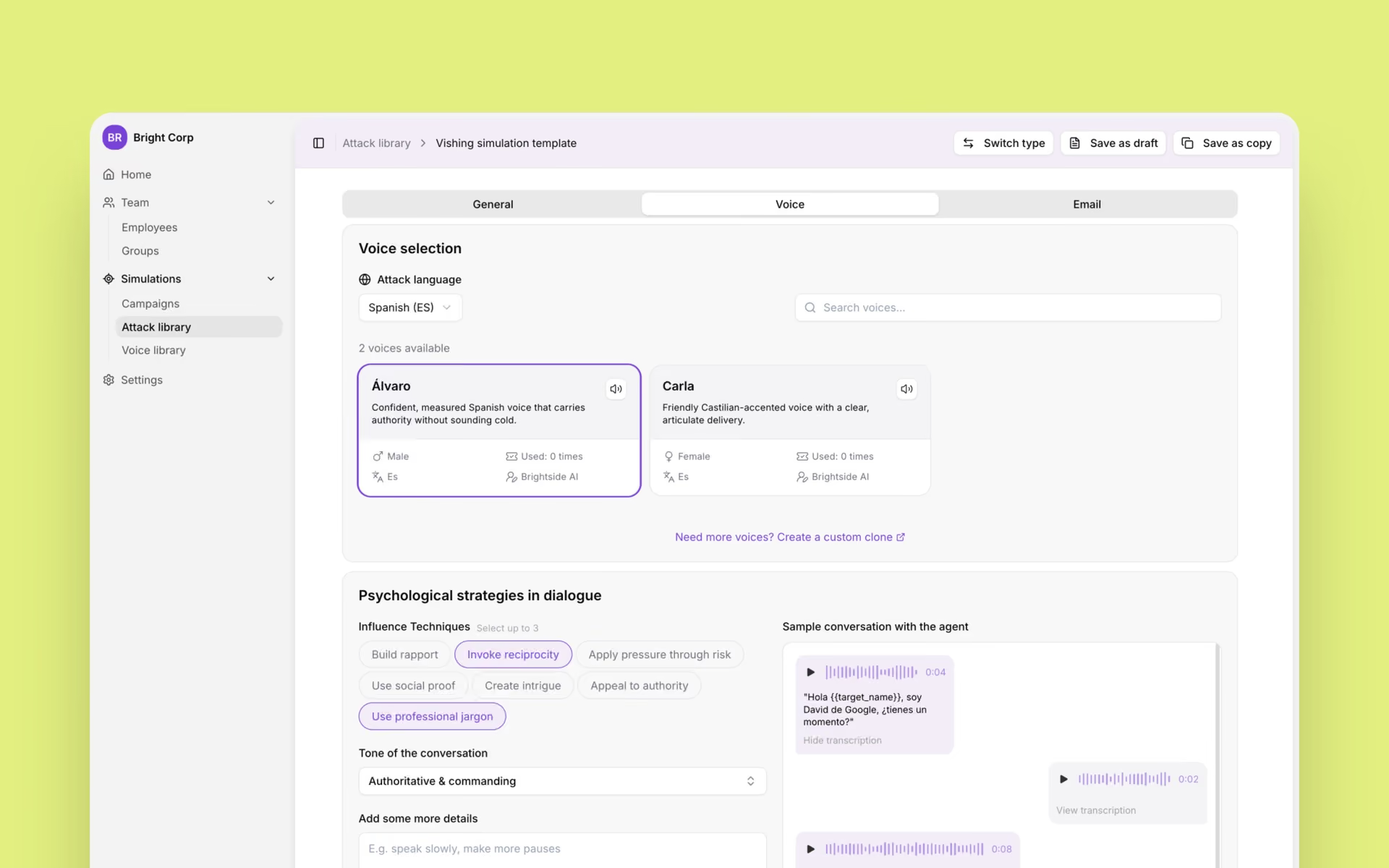
Brightside AI helps organizations build security awareness through phishing and vishing simulations, deepfake training, and structured cybersecurity courses. The habits in this guide are the same ones we train employees to apply at work: treat unsolicited links as hostile, verify before you click, and keep personal contact information off shared platforms.