Product Update: What's New in the Brightside Vishing Simulator
We overhauled the vishing simulator UX. Here's the new campaign launch path, the Voice + BEC template builder, and how test launch works before you send anything.
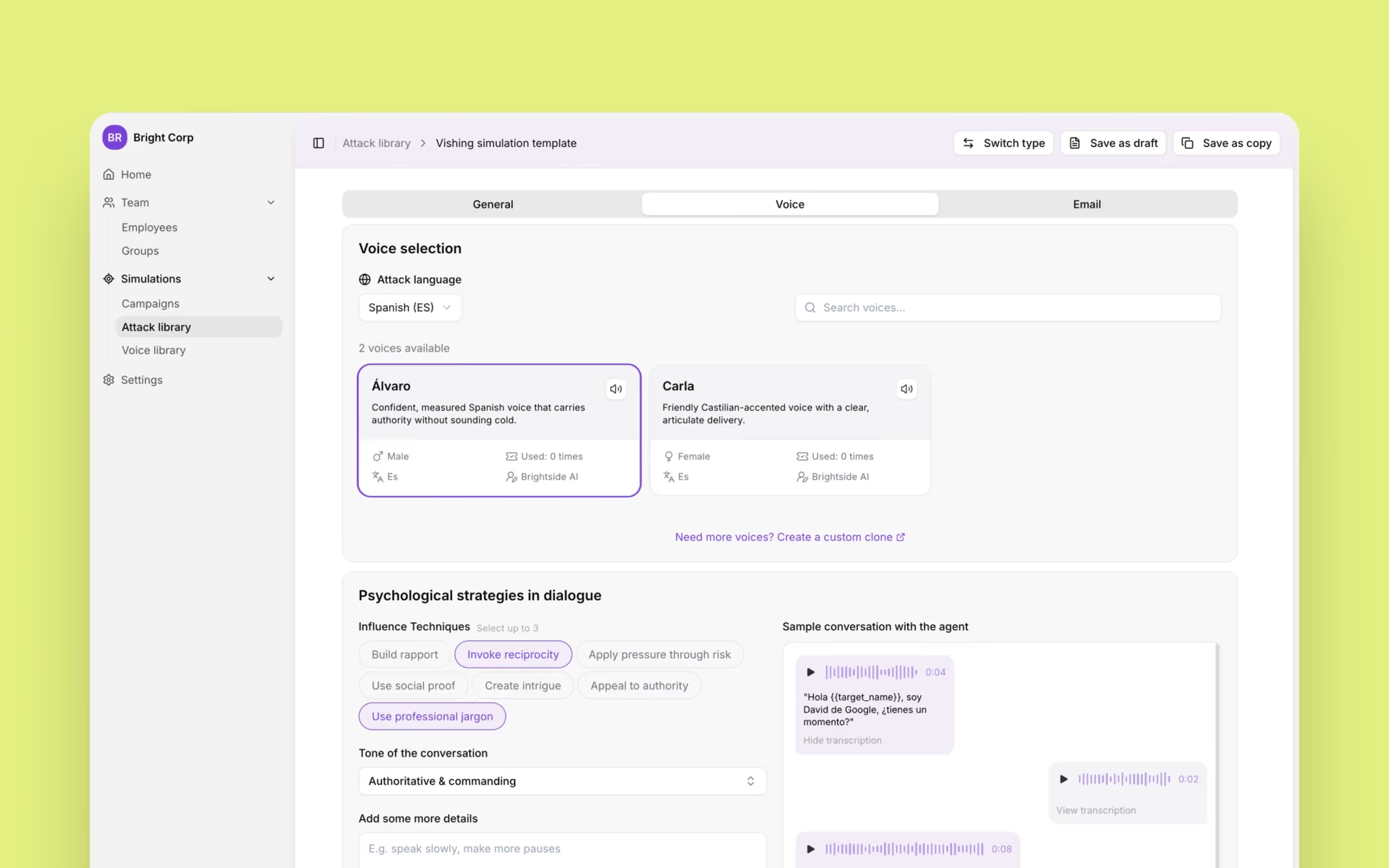
We recently overhauled the vishing simulator to make the UX clearer. Two pieces changed: how you launch a campaign, and how you build an attack template.
- Campaigns now run audience → attack type → templates → settings → test launch
- Attack types are Voice, Voice + BEC, and BEC
- You can attach more than one template to a campaign
- The template builder follows the type you picked
- Test launch lets you review the email and the live AI call before anyone else gets them
Launching a campaign
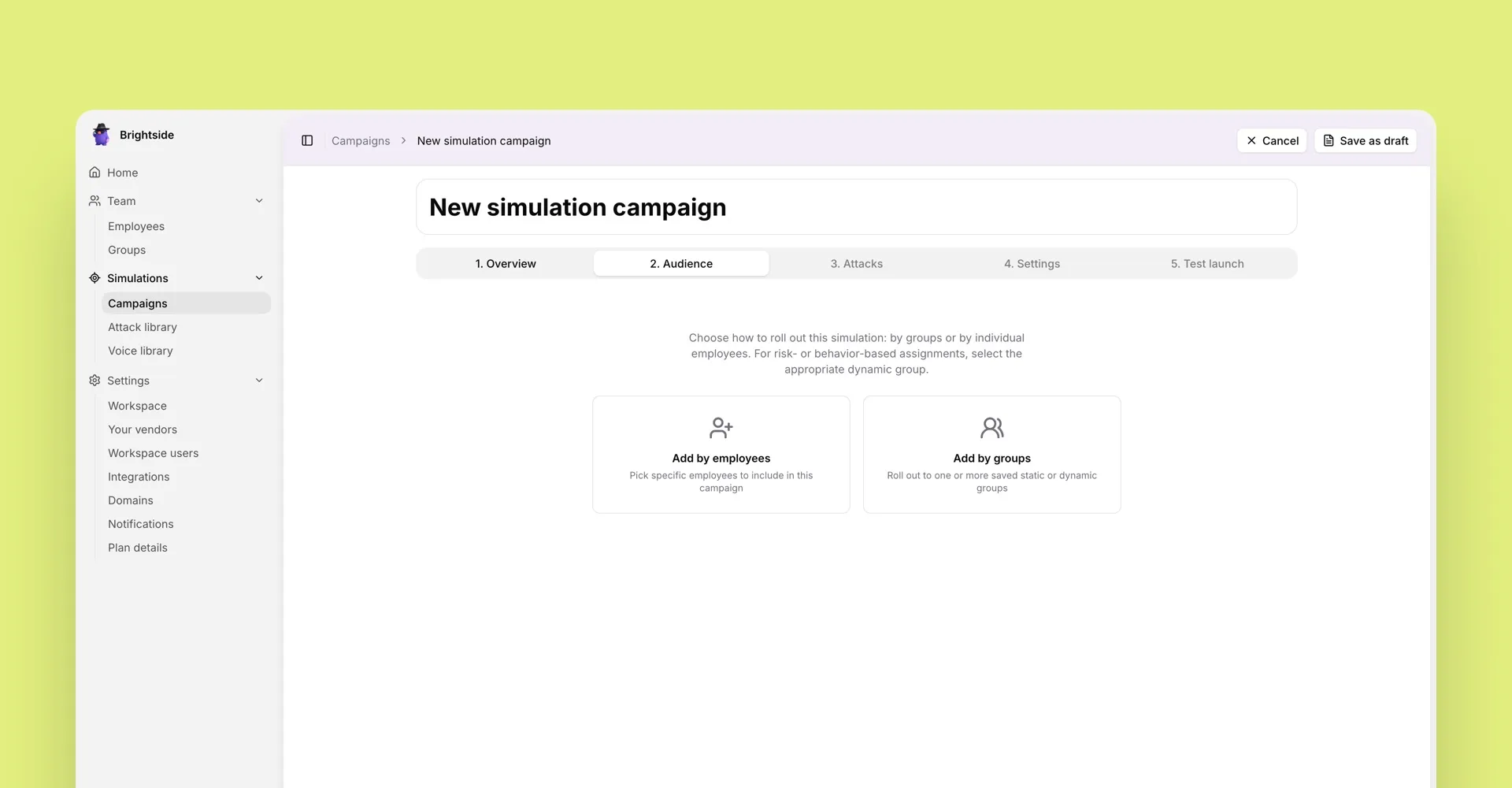
Audience
First you choose who receives the simulation. That can be specific employees, a single person, or a saved group. A group can be a whole department, or a dynamic set such as employees with a high simulation failure rate.
Attack type
Next you pick how the attack is delivered:
- Voice. A phone call only. Each selected employee receives one or more of the templates you add.
- Voice + BEC. A coordinated call and BEC email. Each employee gets both channels as one attack.
- BEC. Email only. Each employee receives a phishing email with a tracked link.
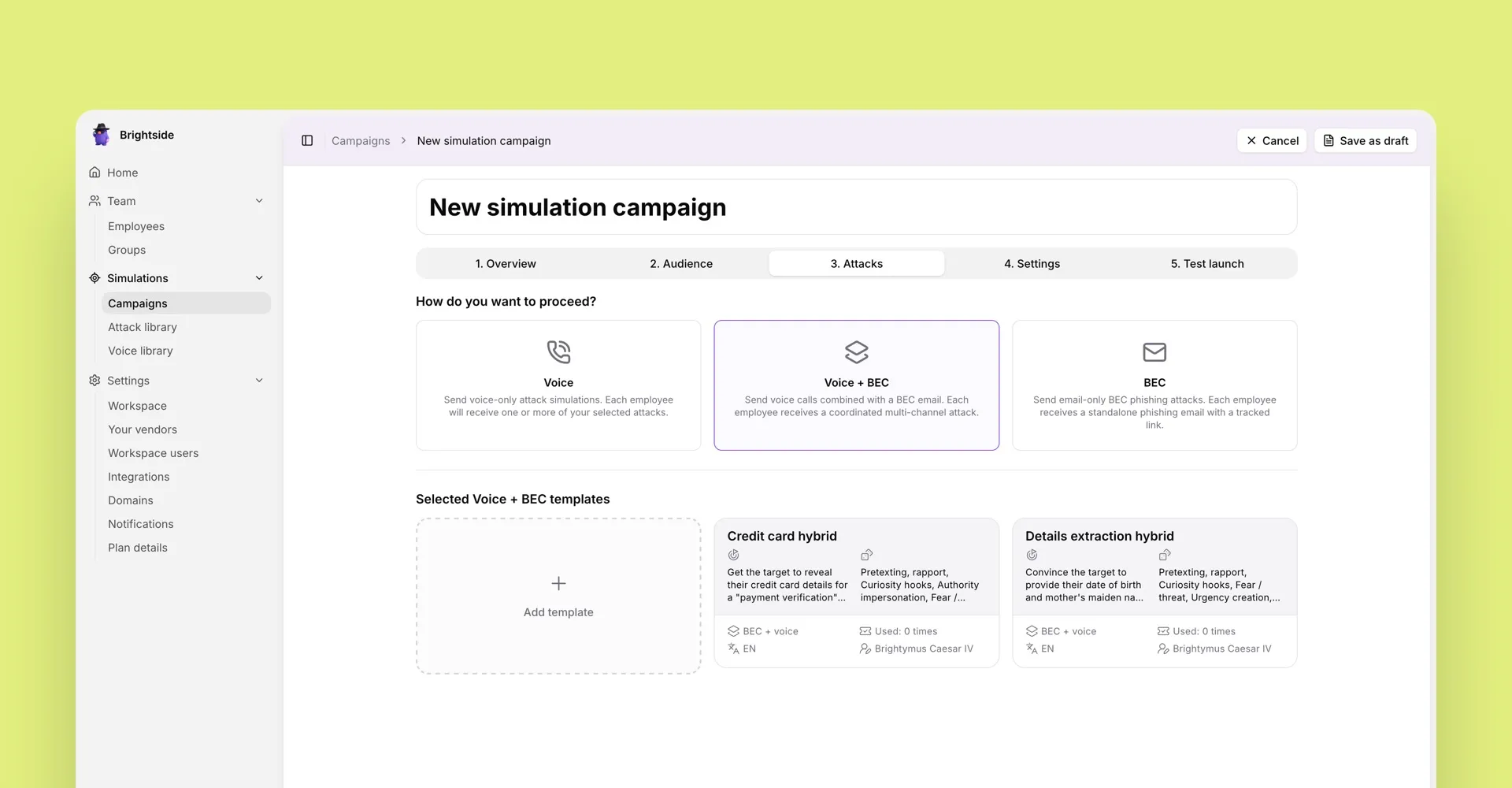
Once the type is set, you add attack templates. You can add several. Custom templates are created in the Attack library, covered below.
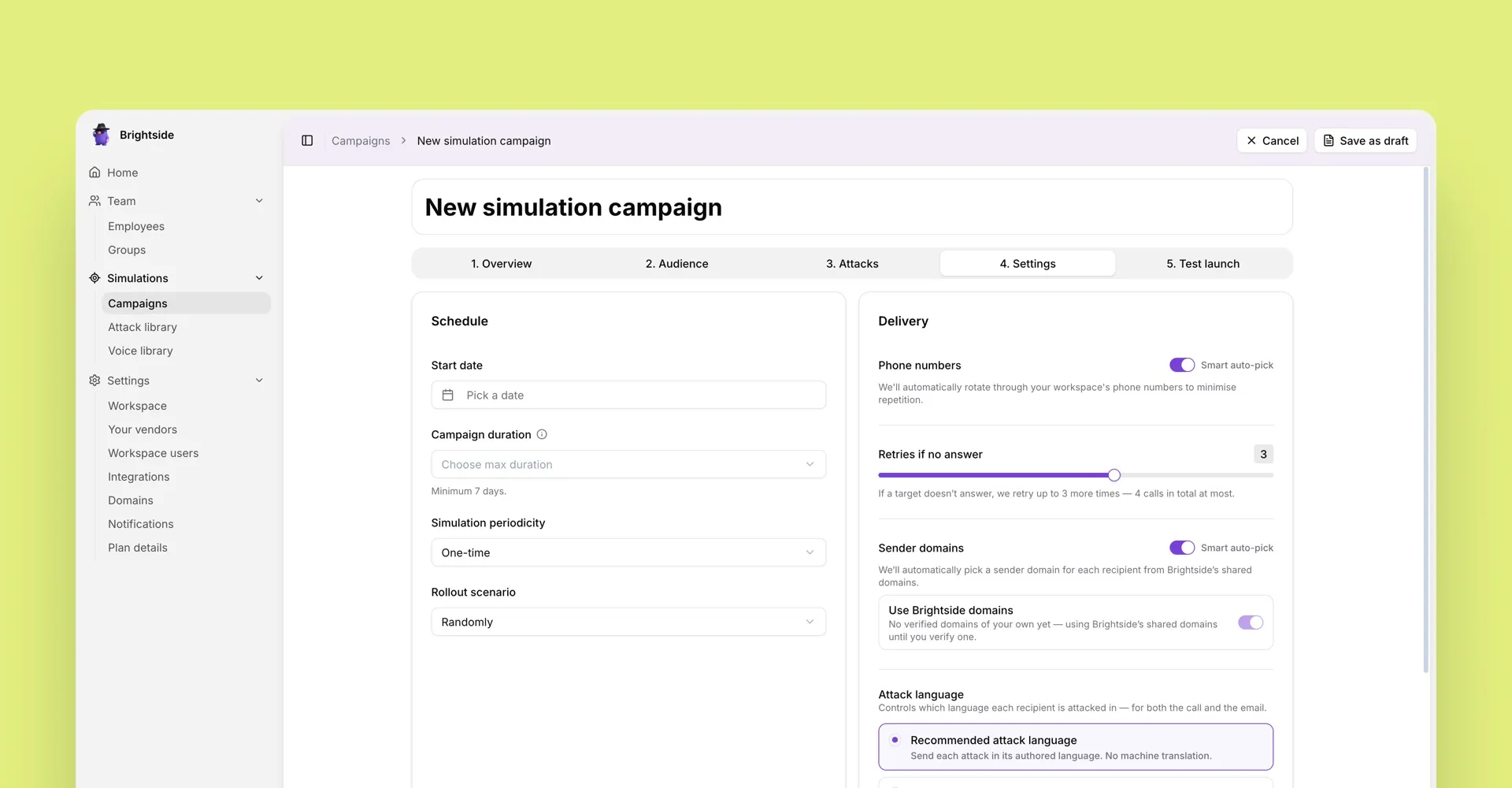
Settings
Then you set the schedule and how the attack is delivered. Start date, campaign duration, how often it runs, and how it rolls out across the audience. On the delivery side: phone number rotation, retries if nobody answers, sender domains for email, and attack language.
Test launch
Last step before anything goes to employees. Depending on the attack type, you get the email, the voice call, or both. You can read the email as the target would see it, and hear how the AI voice agent actually performs.
Building an attack template
The builder changes with the type. Voice skips email. BEC skips voice. Voice + BEC includes every step, so that’s the walkthrough here.
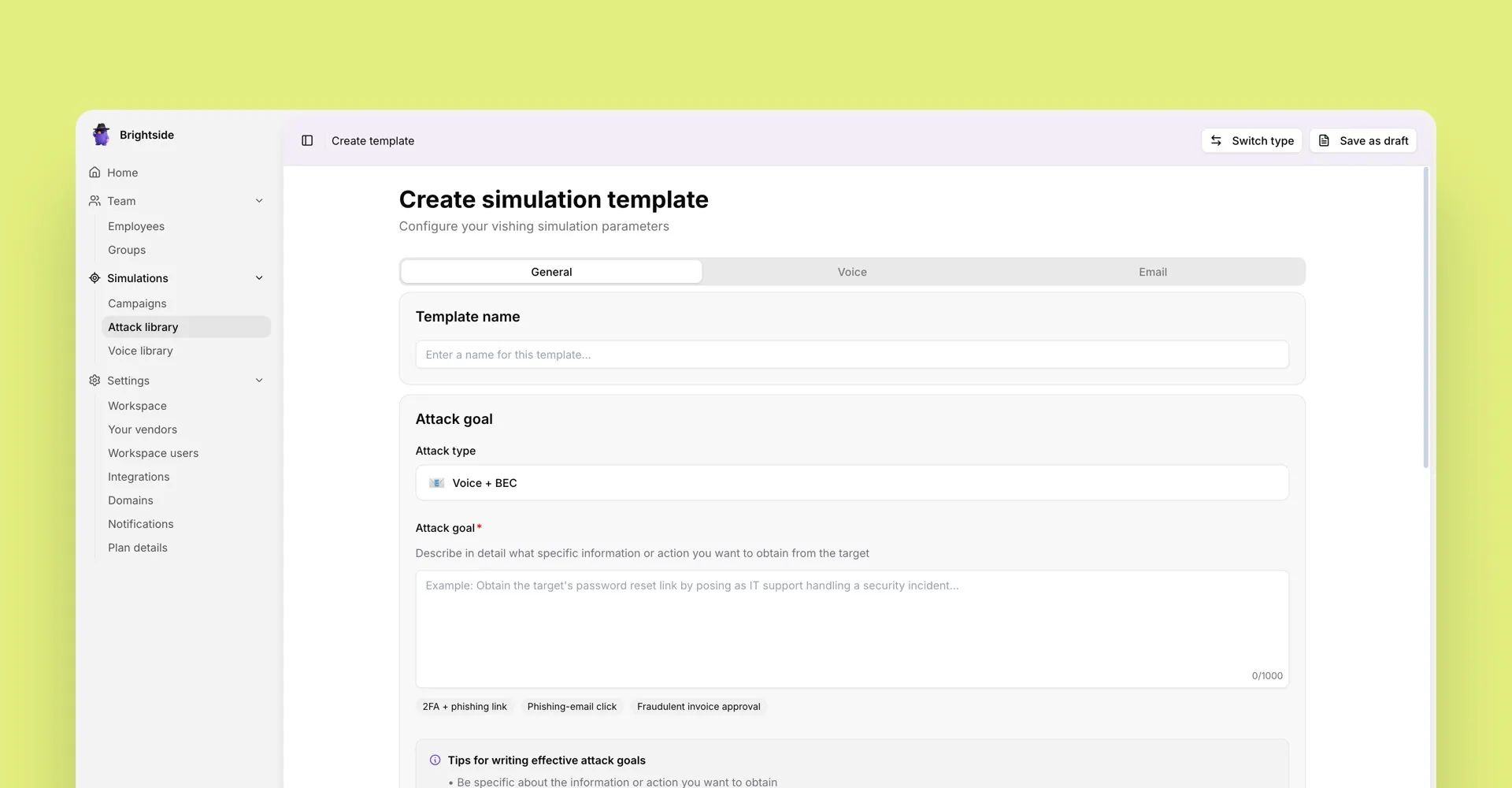
Attack goal
Describe in detail the specific information or action you want from the target. The AI agent uses this as its objective for the whole call. There are presets for common goals, such as a 2FA phishing link or a fraudulent invoice approval. You can still write your own.
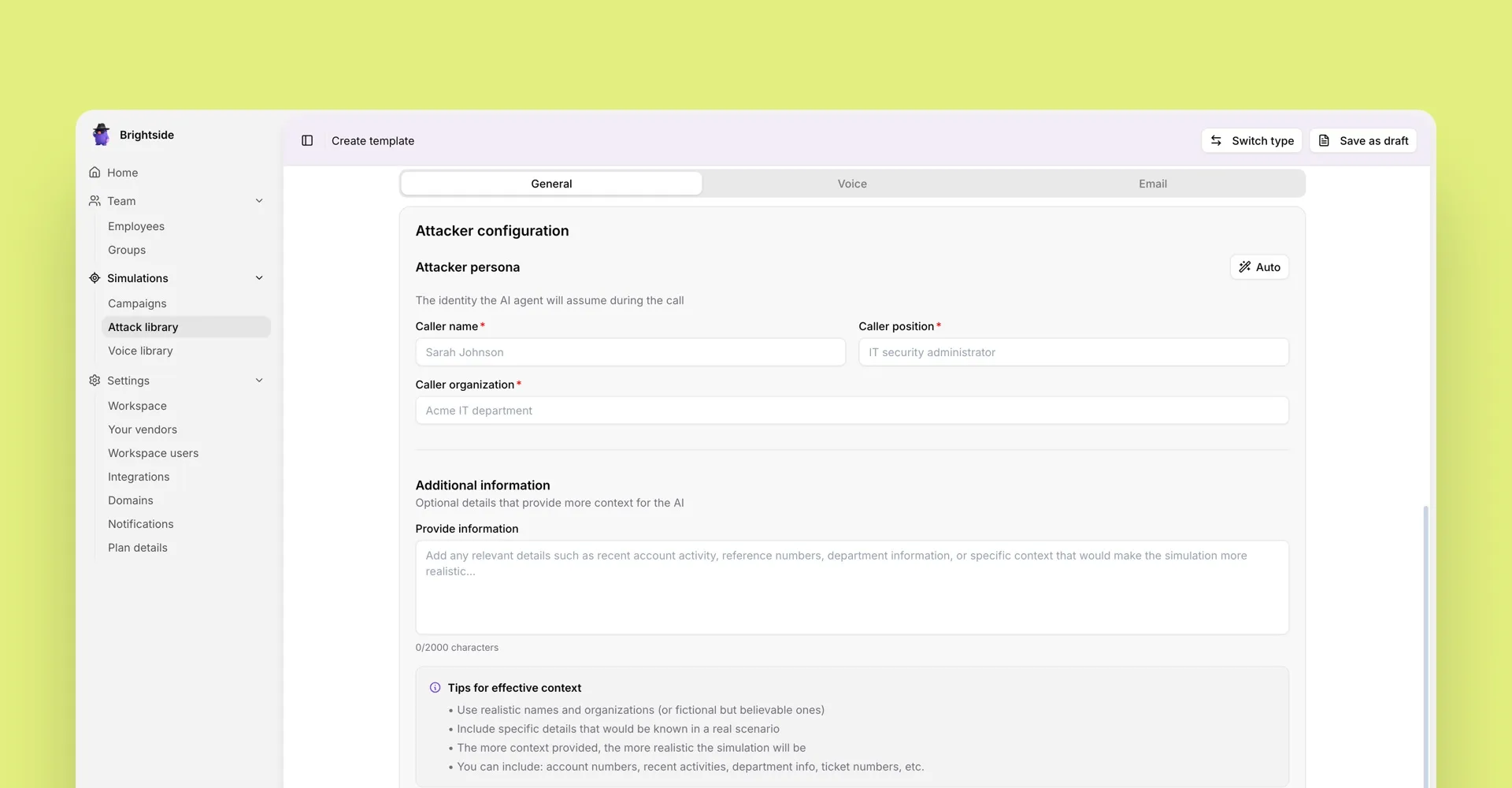
Attacker persona
Then you define who the AI is pretending to be: caller name, job position, and organization. Optional extra context goes in a free-text field. Ticket numbers, recent account activity, department details, anything that would make the call sound like it belongs in your company.
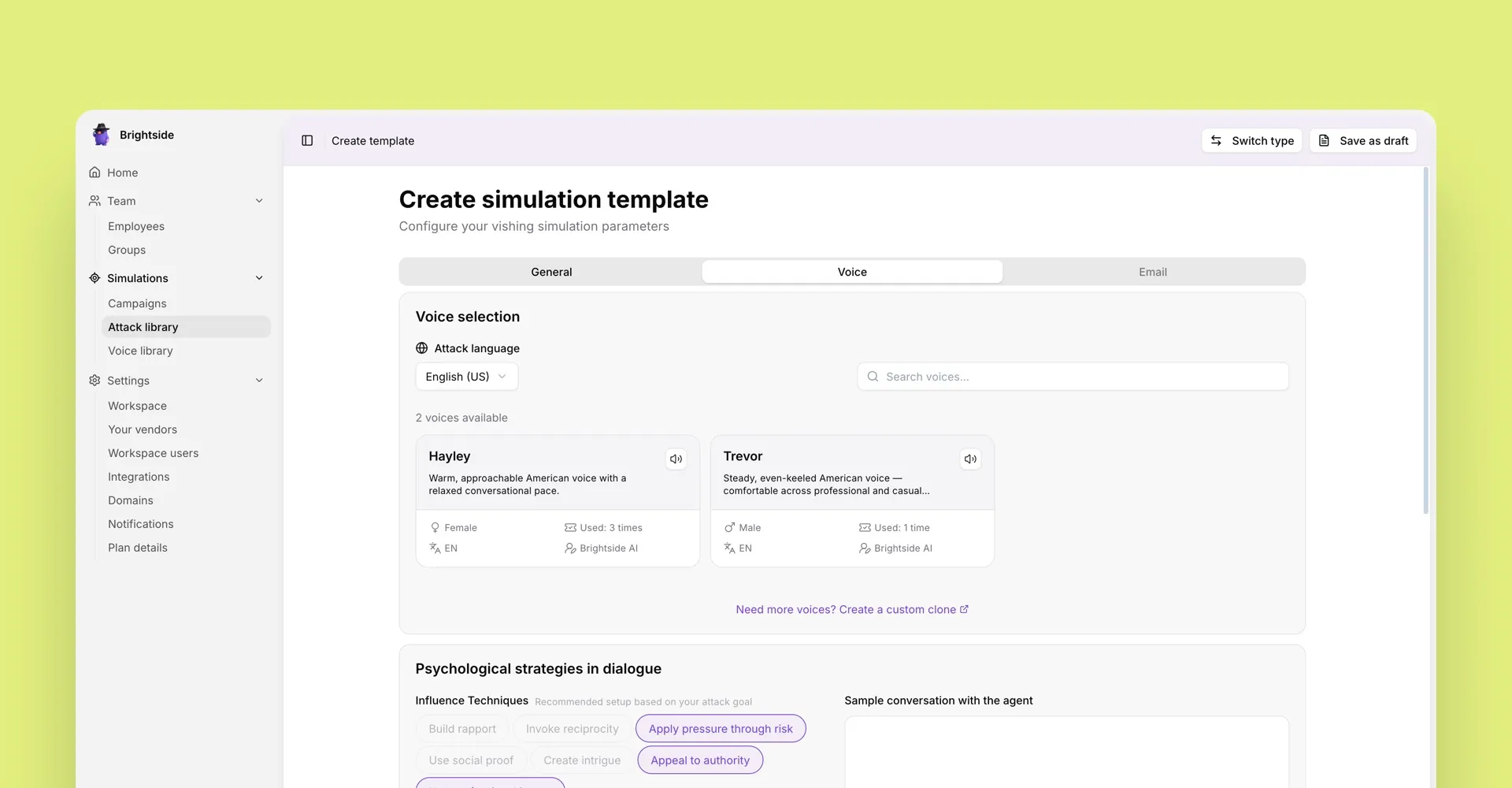
Voice and tactics
Pick a voice for the agent. The library voices were built for phone calls. They sound like a person on a handset, not a polished studio recording, which is usually a giveaway. If nothing in the library fits, clone a custom voice.
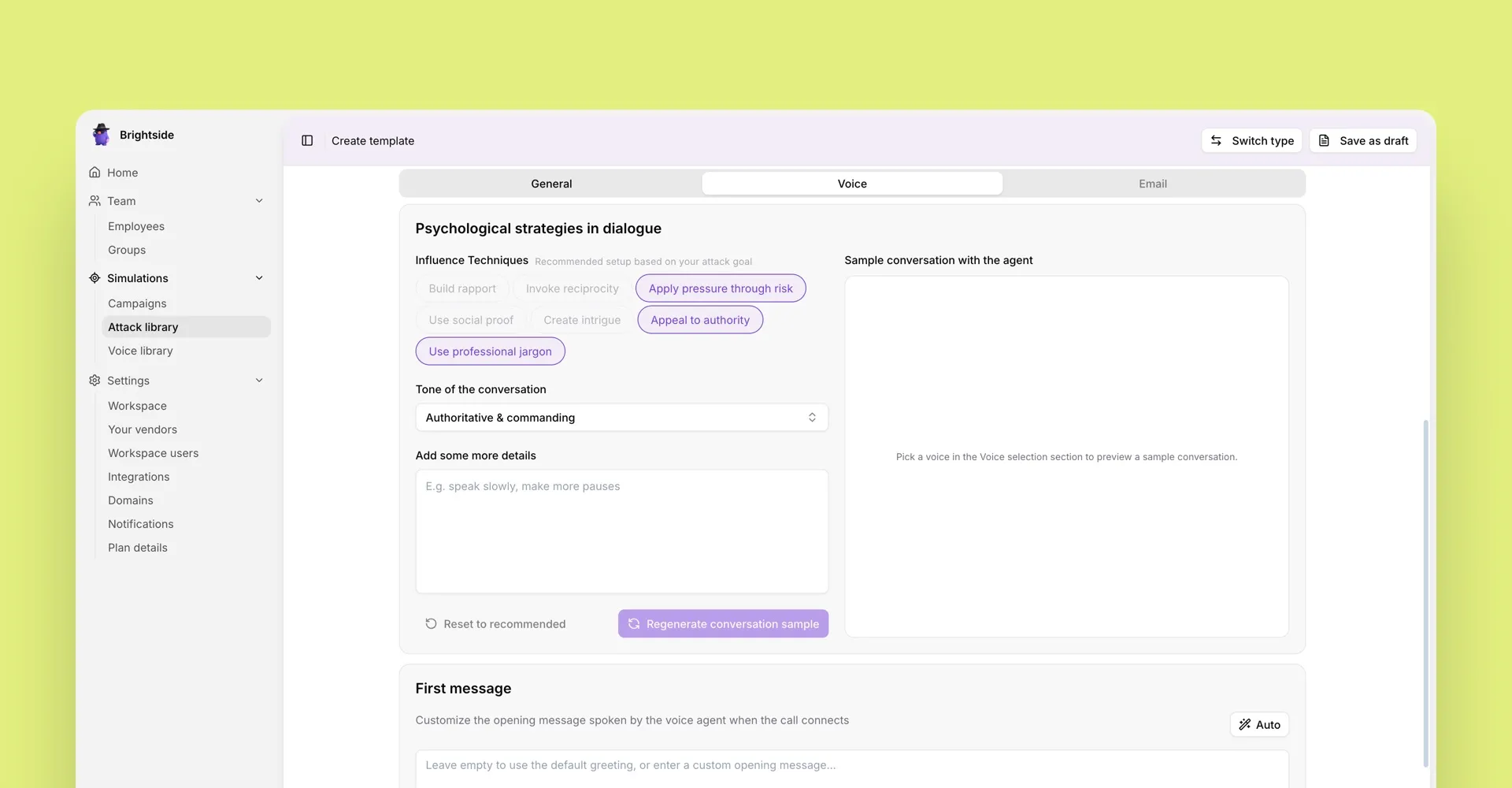
After the voice is set, you choose the social engineering tactics the agent will use. Examples: apply pressure through risk, appeal to authority, use professional jargon. You also set the tone of the conversation, such as authoritative and commanding, and you can add extra delivery notes, like speaking slowly or leaving more pauses.
The last voice control is the first message, the line the agent speaks when the call connects. Leave it empty for the default greeting, write your own, or generate one from the setup you already chose.
BEC email
The last template step is the email.
Delivery first. The email can arrive before the call, so it is already in the inbox when the agent mentions it, or after the call ends.
Then sender details: display name, and the local part of the address, the bit before @. The domain is chosen later, per simulation.
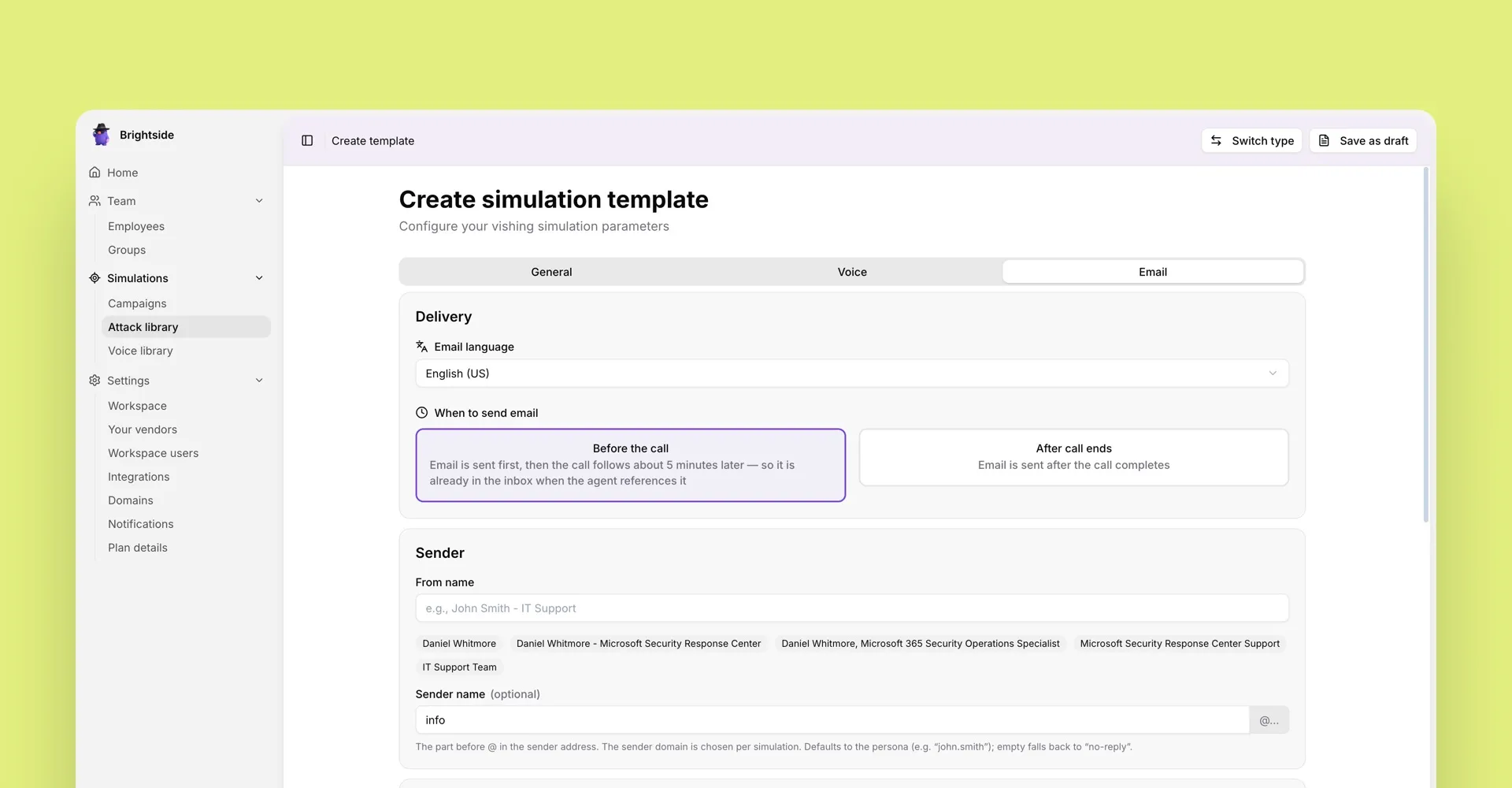
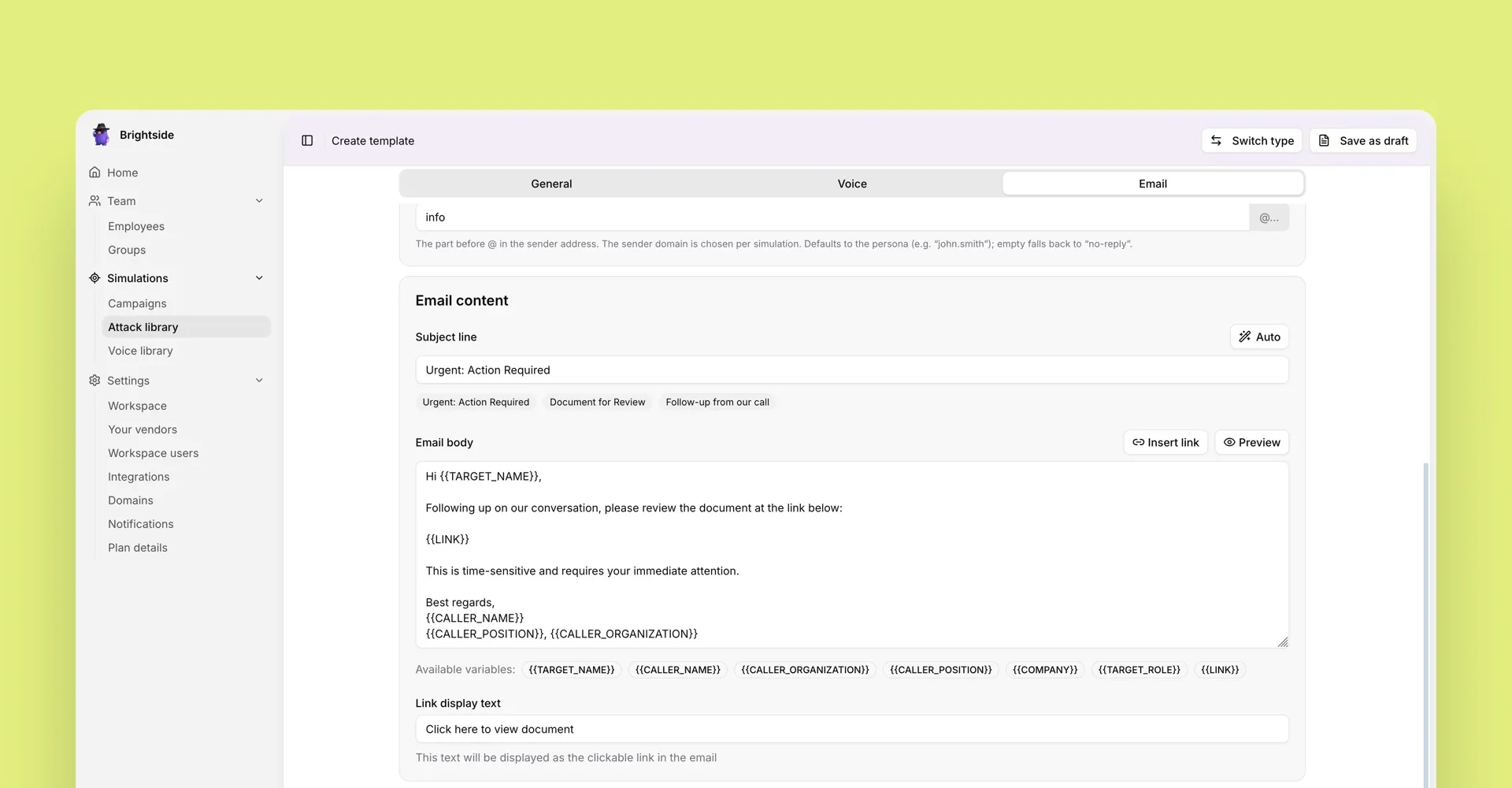
The email itself is subject, body, and link display text. Write all of it by hand, insert variables such as the target’s name and the tracked link, or generate the email from the goal, persona, and tactics you already configured.
That’s this release. Open Campaigns to launch one, or Attack library to build a Voice + BEC template. The vishing product page has the broader picture of how the simulator fits into a program.
Get a complete live walkthrough
Book a call with our team for a full overview of the platform, and bring any questions you want answered. No obligation exploration call.
Try our vishing simulator
Experience the most advanced voice phishing simulator built for security teams. Create scenarios, test voice cloning, and explore automation features.
Latest articles
How to Prevent Account Takeover: A Control-by-Control Guide for Security Teams

How to Run Phishing Awareness Training When Your Team Is Fully Remote
Inside the Revolut Breach: The Fake Request That Passed Every Email Check.